Complete Setup Reference

Get up and running
in three steps

Install the backend engine, connect it to NativeLab, then download a model that fits your hardware. Takes about five minutes.

Estimated setup time: 5-10 minutes
Watch Setup Video
1
Install llama.cpp
2
Link in Server Tab
3
Download a Model

Watch the full
setup in action

See every step demonstrated live — from downloading llama.cpp to running your first conversation locally. No cloud, no account, everything on your machine.

NativeLab Pro — Complete Setup Walkthrough
NativeLab Setup Video
1
Engine Download llama.cpp

NativeLab uses llama.cpp as its inference engine. You need to download the pre-built release that matches your operating system and hardware.

Official source
Visit the GitHub releases page to get the latest build:

github.com/ggml-org/llama.cpp/releases
Latest release
b5605 · llama.cpp

Scroll down past the changelog to find the Assets section. Expand it if collapsed, then download the file matching your system below.

llama-b5605-bin-win-avx2-x64.zip Windows AVX2
llama-b5605-bin-win-avx-x64.zip Windows AVX
llama-b5605-bin-macos-arm64.zip macOS Apple Silicon
llama-b5605-bin-macos-x64.zip macOS Intel
llama-b5605-bin-ubuntu-x64.tar.gz Linux x64
Windows — Choose the right build
Download avx2 if your CPU is from 2013 or later (Intel Haswell+ / AMD Ryzen). Use avx for older machines. If you have an NVIDIA GPU, grab the cuda variant for much faster inference.
  1. Download llama-bXXXX-bin-win-avx2-x64.zip
  2. Extract the zip — you'll get a folder of .exe files
  3. Note the path to llama-cli.exe and llama-server.exe
  4. No installer needed — just remember where they are
macOS — Apple Silicon vs Intel
Download arm64 for any Mac with an M1/M2/M3/M4 chip. Download x64 for older Intel-based Macs. Apple Silicon chips have unified memory — this means much better performance per GB than standard RAM.
  1. Download llama-bXXXX-bin-macos-arm64.zip (M-series) or x64 (Intel)
  2. Unzip the archive — you'll get a folder of binaries
  3. On first run, macOS may show a security warning — go to System Settings > Privacy & Security and click Allow Anyway
  4. Note the path to llama-cli and llama-server
Linux — Ubuntu / Debian recommended
Download the ubuntu-x64 build for most distros. If you have an NVIDIA GPU with CUDA drivers installed, grab the cuda variant for hardware acceleration.
  1. Download llama-bXXXX-bin-ubuntu-x64.tar.gz
  2. Extract: tar -xzf llama-bXXXX-bin-ubuntu-x64.tar.gz
  3. Make executable: chmod +x llama-cli llama-server
  4. Note the full path — e.g. /home/user/llama/llama-cli

Pick the right build
for your machine

Your CPU generation determines which binary flags are supported. When in doubt, AVX2 covers the vast majority of hardware made after 2013.

Pre-2013
Legacy CPU
avx (32-bit float) No GPU support
Core 2 Duo, early Core i series. Very slow for large models.
2013–2018
Modern CPU
avx2 — recommended Haswell / Ryzen 1st gen
Great for 7B–13B models on CPU. Most common setup.
2019–now
Newer CPU
avx2 — recommended avx512 (server CPUs)
Fast inference. Ryzen 3000+, 10th-gen Intel+, Apple Silicon.
NVIDIA GPU
CUDA acceleration
cuda12 variant 5–20x faster
GTX 10xx or newer. Needs CUDA drivers installed separately.
Apple Silicon tip
M1/M2/M3/M4 Macs have unified memory — RAM and GPU memory are shared. A 16 GB M2 Mac can comfortably run a 13B model that would require a dedicated 16 GB GPU on PC. The macOS arm64 build already uses Metal acceleration automatically.
2
App Configuration Point NativeLab to the binaries

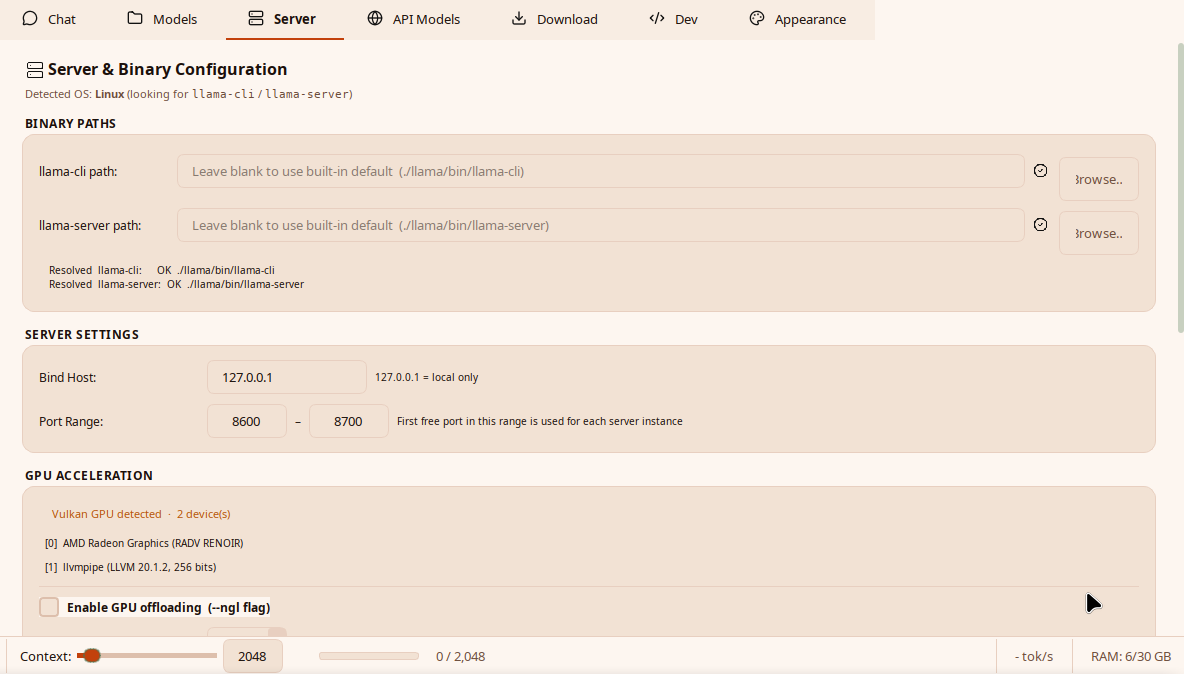
Open NativeLab Pro and navigate to the Server tab. You'll browse to the two binaries you extracted in Step 1.

Native Lab Pro v2
Chat
Models
Config
Server
Pipeline
API Models
Download
MCP
Logs
llama-cli path
C:\llama\llama-cli.exe
llama-server path
C:\llama\llama-server.exe
llama-server is running · Port 8080 · Ready

Server mode vs CLI mode

NativeLab can talk to llama.cpp in two ways. The indicator below shows which one is currently active and what it means for your workflow.

Active backend mode
Active
Server Mode
llama-server (HTTP)
Starts a local OpenAI-compatible API on port 8080. NativeLab connects to it over HTTP. The server stays running between messages.
Persistent context window
Streaming tokens
OpenAI-compatible /v1/chat
Pipeline & API pass-through
Faster multi-turn conversations
Active
CLI Mode
llama-cli (subprocess)
Spawns llama-cli as a subprocess per generation. Simpler setup — no server process needed. Slower for multi-turn chat.
No persistent context
Simpler — no port needed
No streaming support
Not compatible with pipeline
Good for single prompts
llama-server running on port 8080
NativeLab is connected · Streaming enabled · HTTP API ready
Recommended for most users
If the server is not responding — Reload from the View menu
macOS — View menu
View
Toggle SidebarCmd+B
Zoom InCmd++
Zoom OutCmd+-
Reload / Restart ServerCmd+R
Force ReloadShift+Cmd+R
What this fixes
+ Kills any stale llama-server process
+ Relaunches server with current model
+ Clears port 8080 if previously stuck
+ Re-reads your binary path settings
i Check the Logs tab to confirm restart
How to browse
Click Browse next to each field. A file picker will open — navigate to the folder where you extracted llama.cpp and select the appropriate binary:
  • llama-cli — for single prompt / chat completions
  • llama-server — for the local HTTP server (OpenAI-compatible API)
Path examples by OS
Windows C:\Users\you\Downloads\llama\llama-cli.exe
macOS /Users/you/Downloads/llama/llama-cli
Linux /home/you/llama/llama-cli

After setting both paths, NativeLab will start llama-server automatically in the background. The green status indicator in the Server tab confirms it's running. You're now ready to load a model.

3
Models Download a GGUF model

Switch to the Download tab inside NativeLab. Paste a HuggingFace repo ID, click Search, choose a quantization, and download directly to your models folder.

Download HuggingFace GGUF Downloader
Enter any HuggingFace repo ID to browse its GGUF files and download them straight to your models folder. Network access required.

SEARCH REPOSITORY

bartowski/Llama-3.1-8B-Instruct-GGUF

Found 8 GGUF file(s).

AVAILABLE FILES

Llama-3.1-8B-Instruct-Q2_K.gguf[Q2_K · Very compressed]
Llama-3.1-8B-Instruct-Q3_K_M.gguf[Q3_K_M · Compressed]
Llama-3.1-8B-Instruct-Q4_K_M.gguf[Q4_K_M · Balanced]
Llama-3.1-8B-Instruct-Q5_K_M.gguf[Q5_K_M · High quality]
Llama-3.1-8B-Instruct-Q8_0.gguf[Q8_0 · Near lossless]

Which quant
should you pick?

Quantization compresses model weights. Lower = smaller file and less RAM needed, but slightly lower quality. Q4_K_M is the sweet spot for most setups.

Format Quality RAM (7B model) Best for
Q2_K
Low
~3 GB 8 GB RAM, speed only
Q3_K_M
Low-Med
~3.9 GB 8 GB RAM, better than Q2
Q4_K_M Recommended
Good
~4.8 GB 16 GB RAM · best balance
Q5_K_M Recommended
Great
~5.7 GB 16–32 GB RAM
Q6_K
Very good
~6.6 GB 32 GB RAM
Q8_0
Near-lossless
~8.7 GB 32 GB+ RAM

Copy — Paste — Download

Click Copy on any repo ID below and paste it directly into NativeLab's Download tab search field.

8 GB RAM — Light models (3B–7B, Q3/Q4)
Runs on most laptops. Expect ~8–18 tokens/sec on a modern CPU.
bartowski/Llama-3.2-3B-Instruct-GGUF
Meta Llama 3.2 · 3B · Fast · General chat
TheBloke/Mistral-7B-Instruct-v0.2-GGUF
Mistral 7B · Excellent quality-to-size · General use
lmstudio-community/DeepSeek-R1-Distill-Qwen-7B-GGUF
DeepSeek R1 Distill · Reasoning · Strong math & logic
Qwen/Qwen2.5-7B-Instruct-GGUF
Qwen 2.5 · Strong coding & multilingual
16 GB RAM — Mid-tier models (8B–13B, Q4/Q5)
The sweet spot. Can run 13B at Q4 or 8B at Q5/Q6 for very high quality output.
bartowski/Llama-3.1-8B-Instruct-GGUF
Meta Llama 3.1 · 8B · Excellent instruction following
lmstudio-community/DeepSeek-R1-Distill-Llama-8B-GGUF
DeepSeek R1 Distill · LLaMA base · Reasoning & coding
TheBloke/Llama-2-13B-Chat-GGUF
Llama 2 · 13B · Reliable general assistant
bartowski/gemma-3-12b-it-GGUF
Google Gemma 3 · 12B · Multimodal-trained, strong reasoning
TheBloke/CodeLlama-13B-Instruct-GGUF
Code Llama 13B · Coding specialist · Python/C++/JS
32 GB RAM — Large models (30B–34B, Q4/Q5)
High-end desktop or workstation territory. Near-GPT-4-level quality from some models.
bartowski/Llama-3.3-70B-Instruct-GGUF
Meta Llama 3.3 · 70B · Flagship open model · Use Q2/Q3 at 32GB
lmstudio-community/DeepSeek-R1-Distill-Qwen-32B-GGUF
DeepSeek R1 32B · Exceptional reasoning chain · Q3 fits in 32GB
Qwen/Qwen2.5-32B-Instruct-GGUF
Qwen 2.5 · 32B · Best-in-class coding at this size
64 GB+ RAM — Full 70B models (Q4/Q5)
Power workstations, Mac Studio / Mac Pro with 64GB unified memory. Best-in-class local inference.
bartowski/Llama-3.3-70B-Instruct-GGUF
Meta Llama 3.3 · 70B · Q4_K_M fits in ~42 GB — best open LLM available
bartowski/DeepSeek-R1-GGUF
DeepSeek R1 Full · 671B (use IQ2/IQ3 variants) · Reasoning powerhouse
Where models are saved
NativeLab downloads models to C:\NativeLabPro\localllm on Windows (or the equivalent path on Mac/Linux). Once downloaded, they appear automatically in the Models tab and can be loaded from there.
*

You're all set

Start your first conversation

Switch to the Chat tab, type a message, and the model will respond. Everything runs locally — no cloud, no account, no data leaving your machine.

Back to Home Watch Setup Video View on GitHub